Using Snooze in Internode.on.net webmail

Email snooze is a feature that allows you to hide an incoming message for a while, so it reappears in your mailbox as a new email after a set time. It’s useful when you don't want to read a message right away but don't want to lose it in your inbox.
Unfortunately, Internode.on.net (Internode) doesn’t offer a snooze feature in its webmail interfaces.
Good news though! Internode.on.net (Internode) supports IMAP, so you can access the snooze email feature through a desktop email client like Mailbird.
 Snooze is not available for internode.on.net
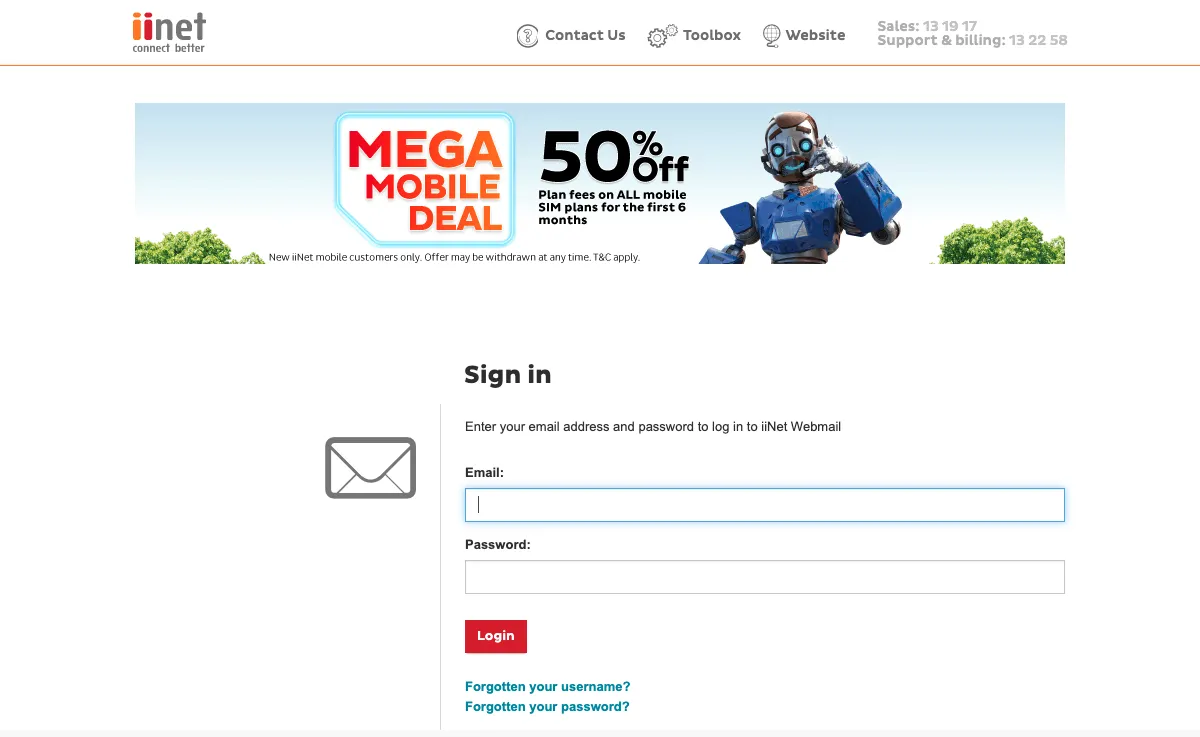
So, how do you snooze the emails you received to Internode.on.net?
In order to access that highly useful snooze email feature in Internode.on.net (Internode), just follow the steps below. You will be able to try the feature with Mailbird for free.
-
Download and install Mailbird
Mailbird is a desktop email client for Windows and Mac that is very convenient for managing multiple addresses, either in its unified inbox or separately. It supports most email providers, so you can boost almost any kind of account with unique features. You can definitely use Mailbird to snooze an Internode.on.net email.
So, the first step is to download and install the app on your desktop. -
Add your Internode.on.net account
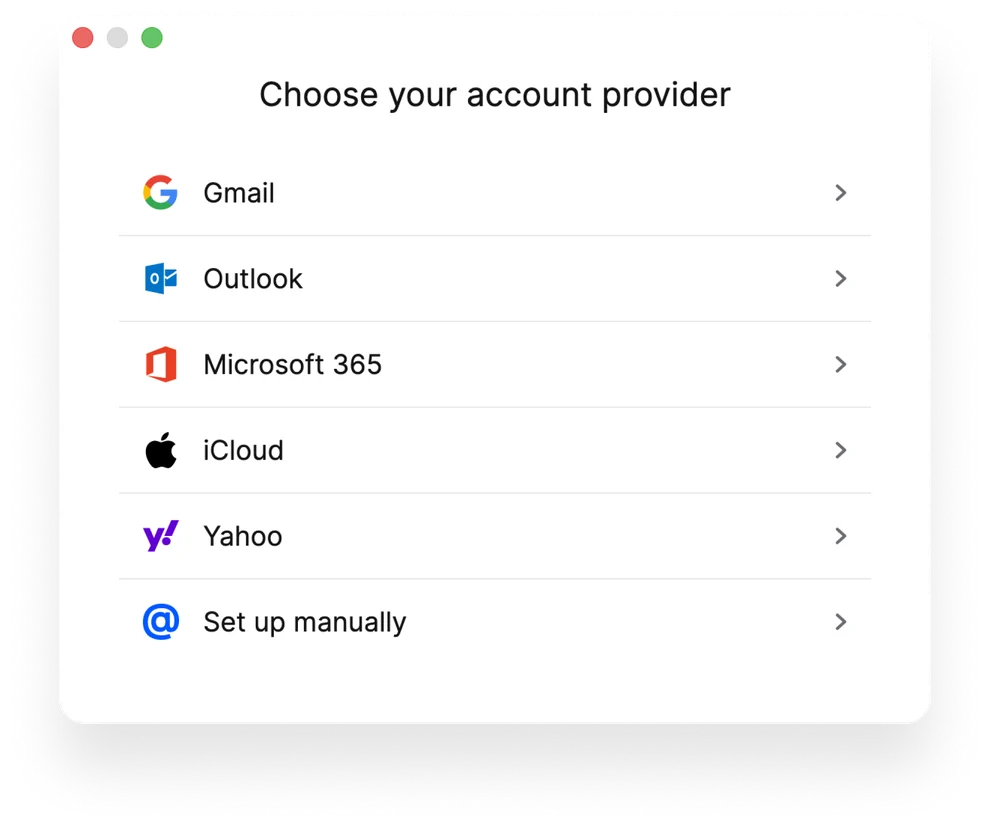
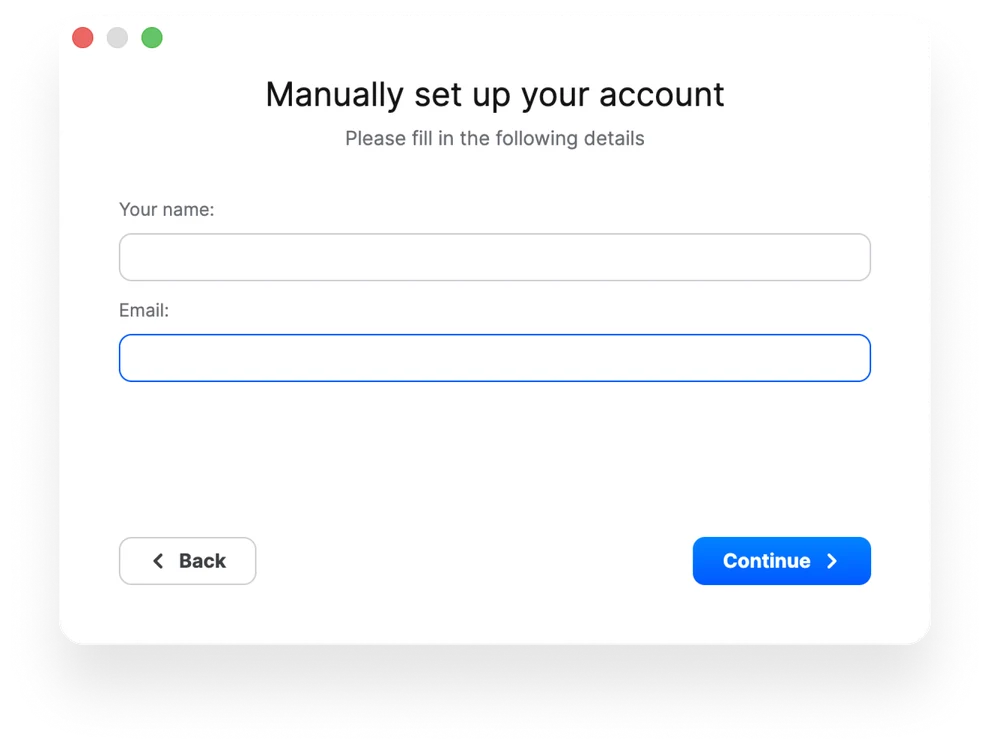
Launch the Mailbird app and add your name, Internode.on.net address, and password. Then, wait for the server settings to configure (or do it manually with these instructions). You'll be able to add more accounts in the Settings menu later on.
-
Snooze incoming mail
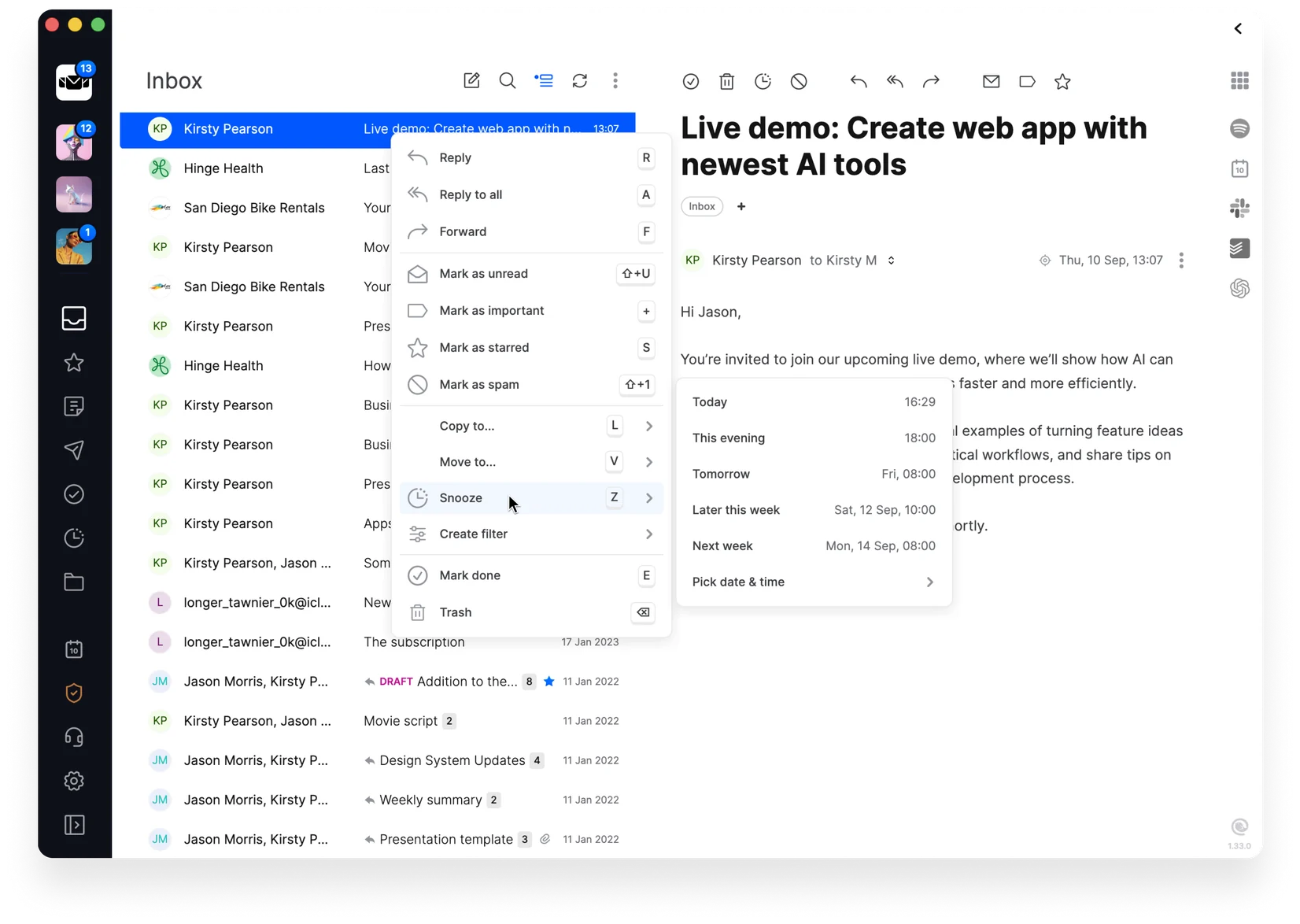
There are two ways to snooze an email in Mailbird. Right-click the message in your inbox and choose Snooze, or open the email and click the snooze button at the top of the message. Then choose a predefined time or set your own date.
Note that you can also snooze sent emails if you want to use the feature as a follow-up reminder.